Several Vans, Several Technicians: How to Organise Stock Across Your Team

On your own, you roughly know what is in your van. With three technicians and four vehicles, nobody really knows any more: people phone around for a part, order one that was sitting in the next van, and the workshop empties without anyone knowing why.
The real problem: everyone sees their own stock, nobody sees the whole
In a small fleet, stock is scattered: a little in each vehicle, a lot in the workshop. Each technician knows (more or less) their own van, but the manager has no overall view. The result:
- parts bought twice when they were in another vehicle;
- phone calls to find out "who still has a 30/30 cylinder";
- a workshop that empties without a trace: who took what, and for which job?
The solution comes down to three principles: one stock per location, access suited to each person, and a record of every movement.
1. One stock per vehicle and one for the workshop
Each vehicle and each workshop has its own stock, with its own quantities and alert thresholds. A van that mostly does emergency call-outs does not need the same parts as a van on installation jobs: its thresholds are not the same either.
The benefit is the overview: when the manager opens the app, they see the state of each vehicle, the active alerts and the value of the stock on board, without walking round the yard.

2. Give each technician the right access
A technician does not need to see the whole company: they need their van, and sometimes the workshop. The right setup:
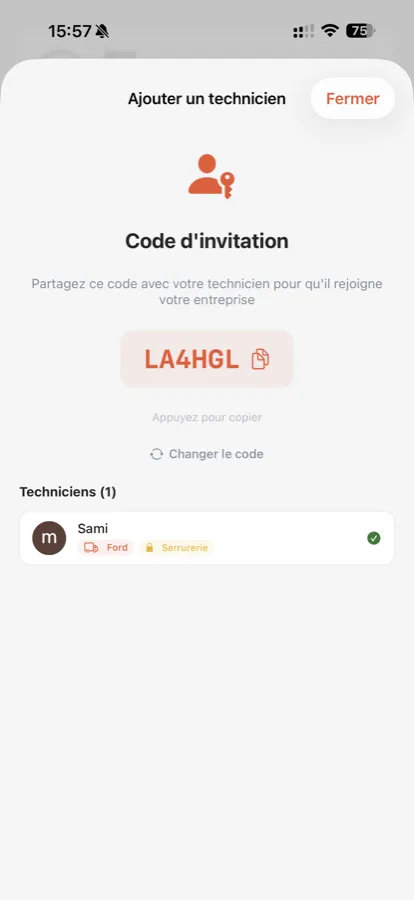
- Invite the technician with an invitation code: they create their account and join your company directly.
- Assign them one or more vehicles: they only see those, with their stock and history.
- Set their workshop rights, separately: view the stock, edit it, and transfer parts between the workshop and their vehicle.
An apprentice can thus look at the workshop without touching anything, while a team leader handles transfers. And when someone leaves the company, you deactivate their account without losing the history of their movements. Technician accounts are included in the Pro (3 technicians) and Enterprise (unlimited) subscriptions.
3. Tracked transfers, instead of borrowing
Helping out between colleagues is normal: "pass me two fittings, I'm running short". The problem is when it is recorded nowhere. The stock of both vehicles becomes wrong, and alerts stop being useful.
A transfer fixes that: the part leaves one stock and enters the other, in a single operation, with the date, the person and the quantity. The same goes between the workshop and a vehicle when you reload the van in the morning.

4. Search the whole fleet before ordering
Before placing an order, a reflex: search for the item across all stock. If it is in another vehicle or in the workshop, a transfer costs less than an order, and the part is available right away.
5. A history to understand, not to police
Every entry, exit, transfer or stocktake correction is recorded: who, what, when, from where and to where. The aim is not to keep tabs on the team, but to understand: which vehicle uses the most, which part vanishes every month, which job cost more than planned. Each technician only sees the history of their own vehicles; the manager sees everything.
To make those numbers talk, see Stock value and consumption: the numbers to track.
Get the organisation up and running in a week
- Day 1: create your vehicles and your workshop, and import your list of items from Excel if you have one.
- Days 2 and 3: run a stocktake of each vehicle (15 minutes each, see our method).
- Day 4: invite your technicians, assign vehicles and set workshop rights.
- Day 5: set the alert thresholds for the essential items.
- After that: every exit is scanned on site, every loan becomes a transfer.
In short
- One stock per vehicle and per workshop, with an overview for the manager.
- Each technician sees their own vehicles, with workshop rights set one by one.
- Exchanges between vehicles go through tracked transfers.
- Search the whole fleet before ordering.
Frequently asked questions
Can a technician see the stock of other vehicles?
No, not if they are not assigned to them. Each technician only sees the vehicles assigned to them, and the workshop only if the manager gives them the right.
How does a technician join the company in the app?
The manager generates an invitation code. The technician creates their account, enters the code and joins the company directly, with the vehicles and rights assigned to them.
What happens when a technician leaves the company?
The manager deactivates their account: they no longer have access to the stock, but the history of their movements is kept.
Read next
Article published on the VanStock blog: https://vanstock.app/en/blog/manage-stock-fleet-technicians/